Keeping your billing information up to date ensures your French lessons are never interrupted! C'est facile! (It's easy!)
How to Change Your Payment Details
-
Log in to your dashboard at web.lingoculture.com
-
Click on your profile icon and select "My Account"
-
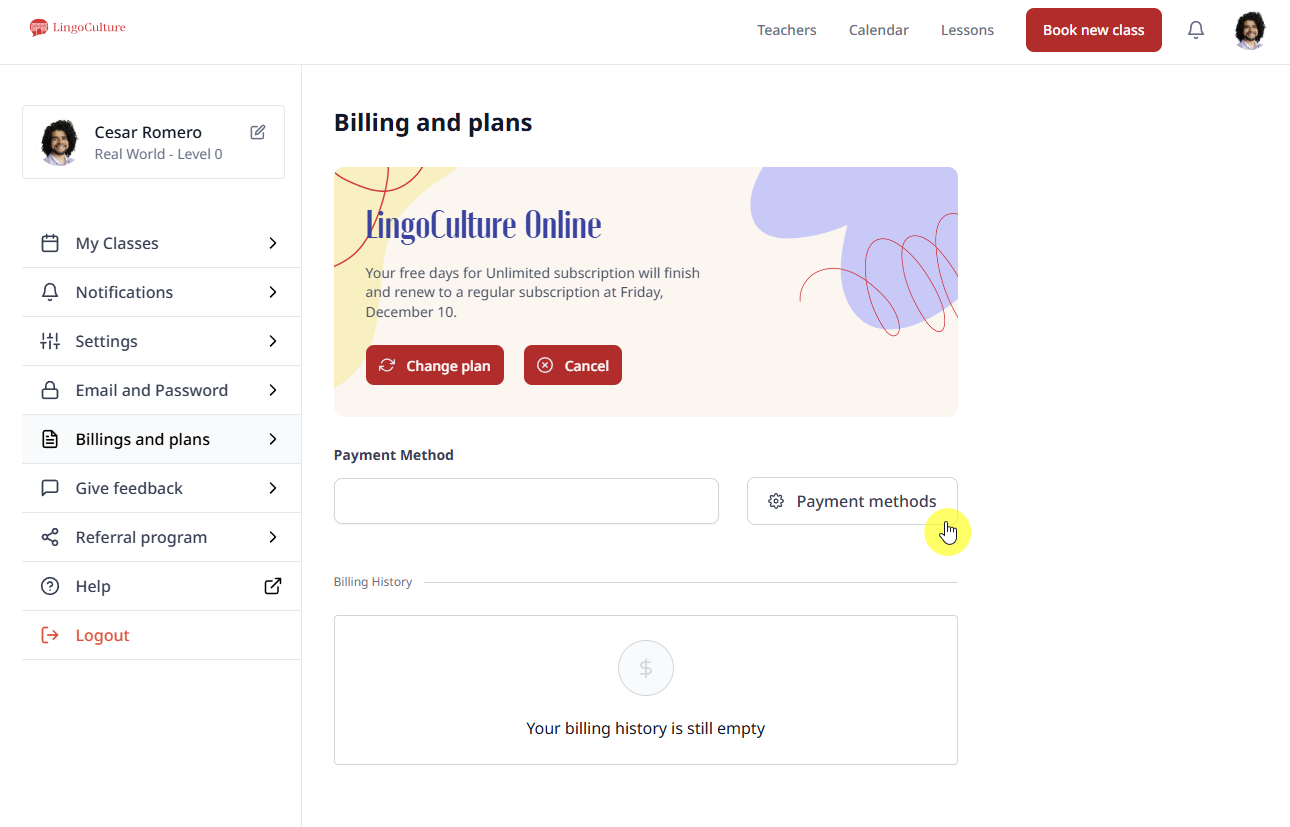
Go to the "Billings and plans" section on the left-hand menu
-
Look for the "Payment Method" section and click the "Payment methods" button
Adding a New Method
-
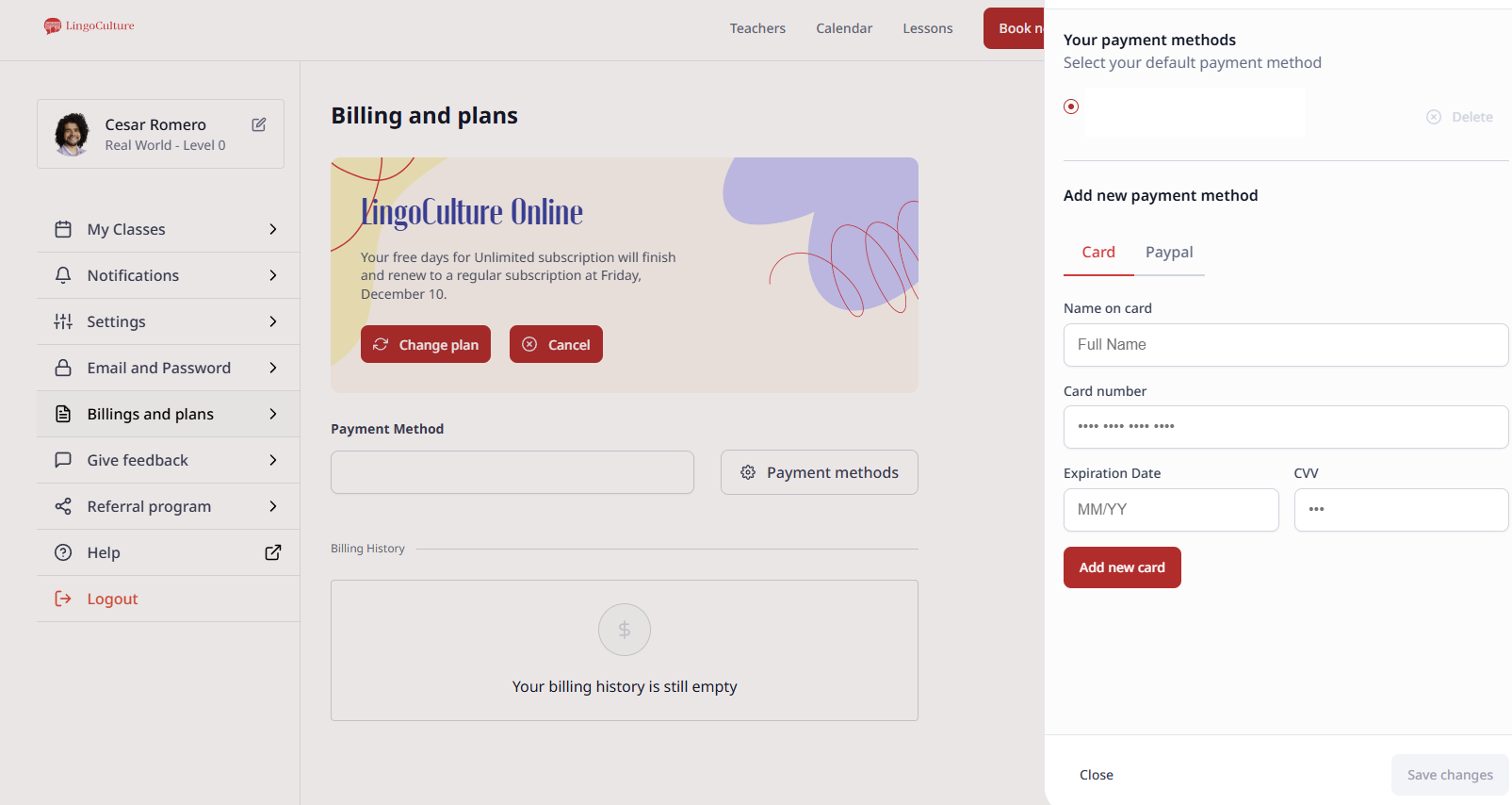
Add a New Card: Enter your name, card number, expiration date, and CVV. Click "Add new card" to save it.
-
Switch to PayPal: Select the "PayPal" tab at the top of the sidebar to connect your PayPal account.
-
Delete Old Methods: Click the "Delete" icon next to any card that is not your primary payment method.
Troubleshooting
-
We accept all major credit cards including VISA, MasterCard, and American Express (note: Euro payments are limited to VISA and MasterCard)
-
Ensure your card is active and authorized for international online transactions
-
Sometimes banks block international charges as a security measure -- a quick call to your bank can usually resolve this!
Still need help?
-
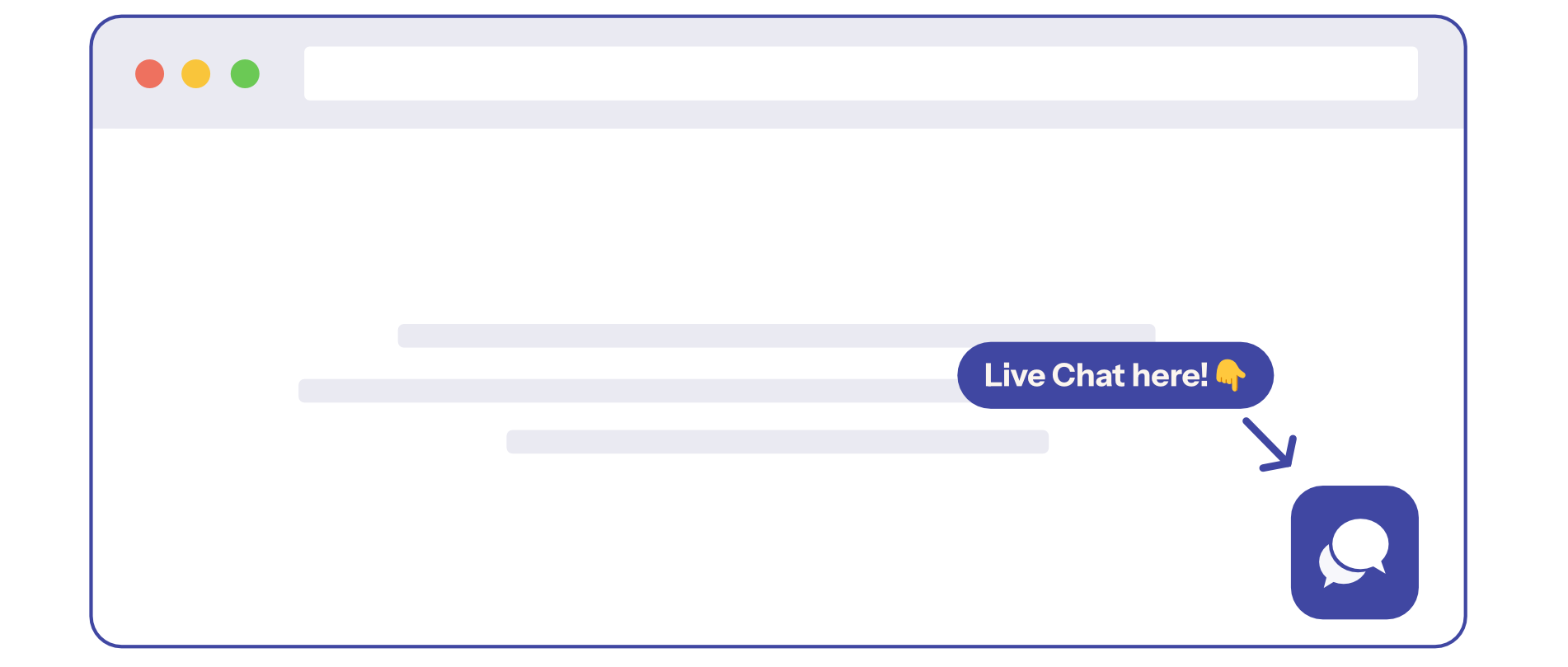
Talk to us: Click the Chat Bubble in the bottom right corner or email bonjour@lingoculture or [email protected].